

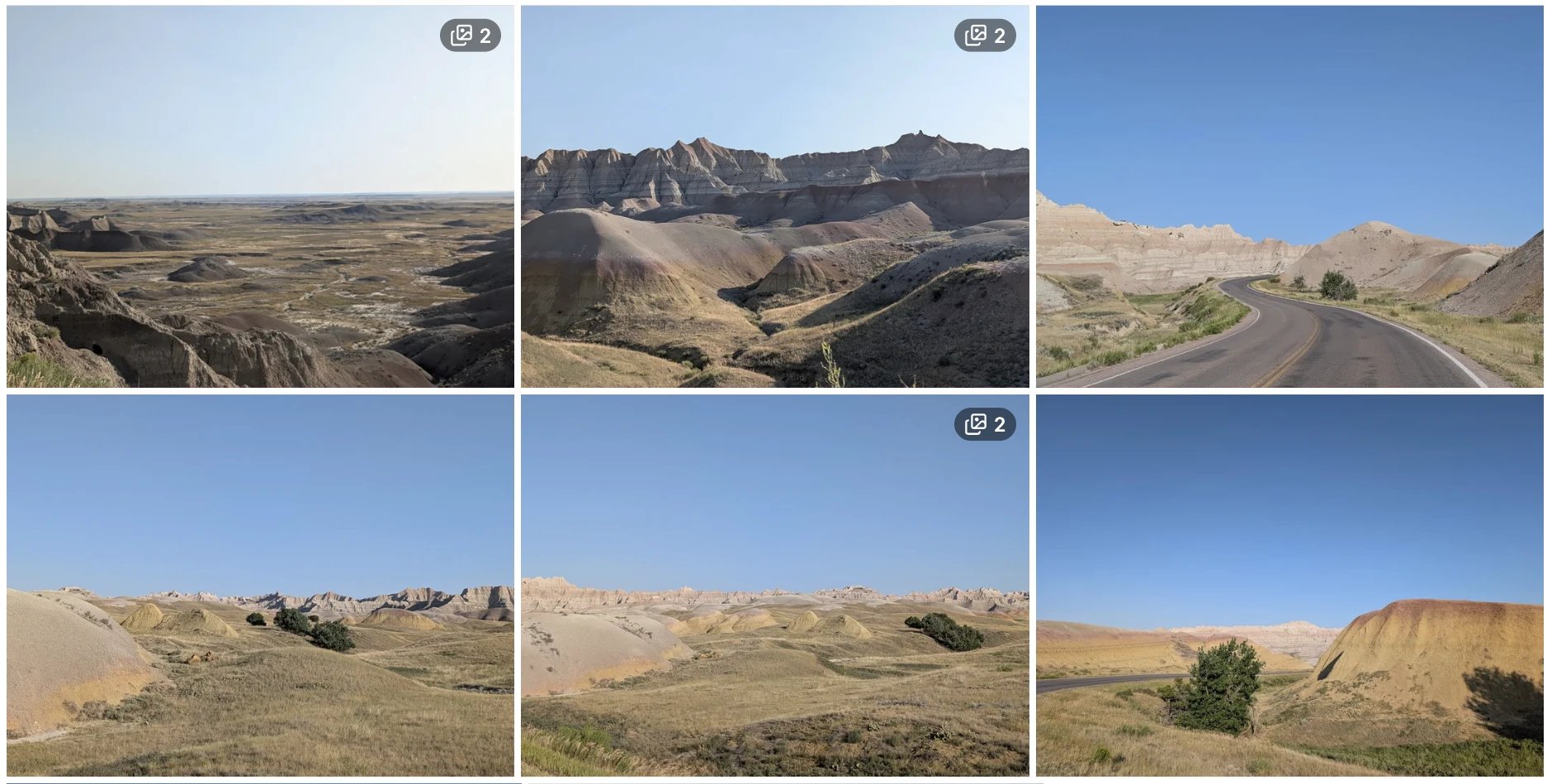
Stack badges show how many photos are grouped under each cover.
Automatic bursts
Gumnut automatically groups eligible photos taken close together by the same camera. This helps keep a burst of similar shots from crowding your timeline. Detection uses capture time and camera information, so photos without enough metadata may not be stacked automatically. Burst detection runs in the background after upload.Make your own stack
You need the Owner or Collaborator role. In the web app, select at least two photos and choose Stack. Manual stacks do not need to meet the automatic burst’s time or camera criteria. If you select a stack’s cover that you explicitly set with Set as stack cover, all its members join the new group. Selecting another member moves only that photo. This lets you combine stacks or regroup individual shots.Adjust a stack
Open a stack and use the selected frame’s stack menu to:- Set as stack cover: choose the shot shown for the group.
- Remove from stack: take that photo out while keeping it in the library.
- Unstack: dissolve the group and keep all its photos.