Gumnut detects faces in uploaded images and groups them into people within each library. A face is one detection in one photo; a person brings together that individual’s faces across many photos.

Find and name people

Open People in the web app to browse the groups Gumnut has found. Give people names so you can recognize them in the app and use them in search and filters. In a shared library, those names and assignments are shared with its members. You need the Owner or Collaborator role to change them.
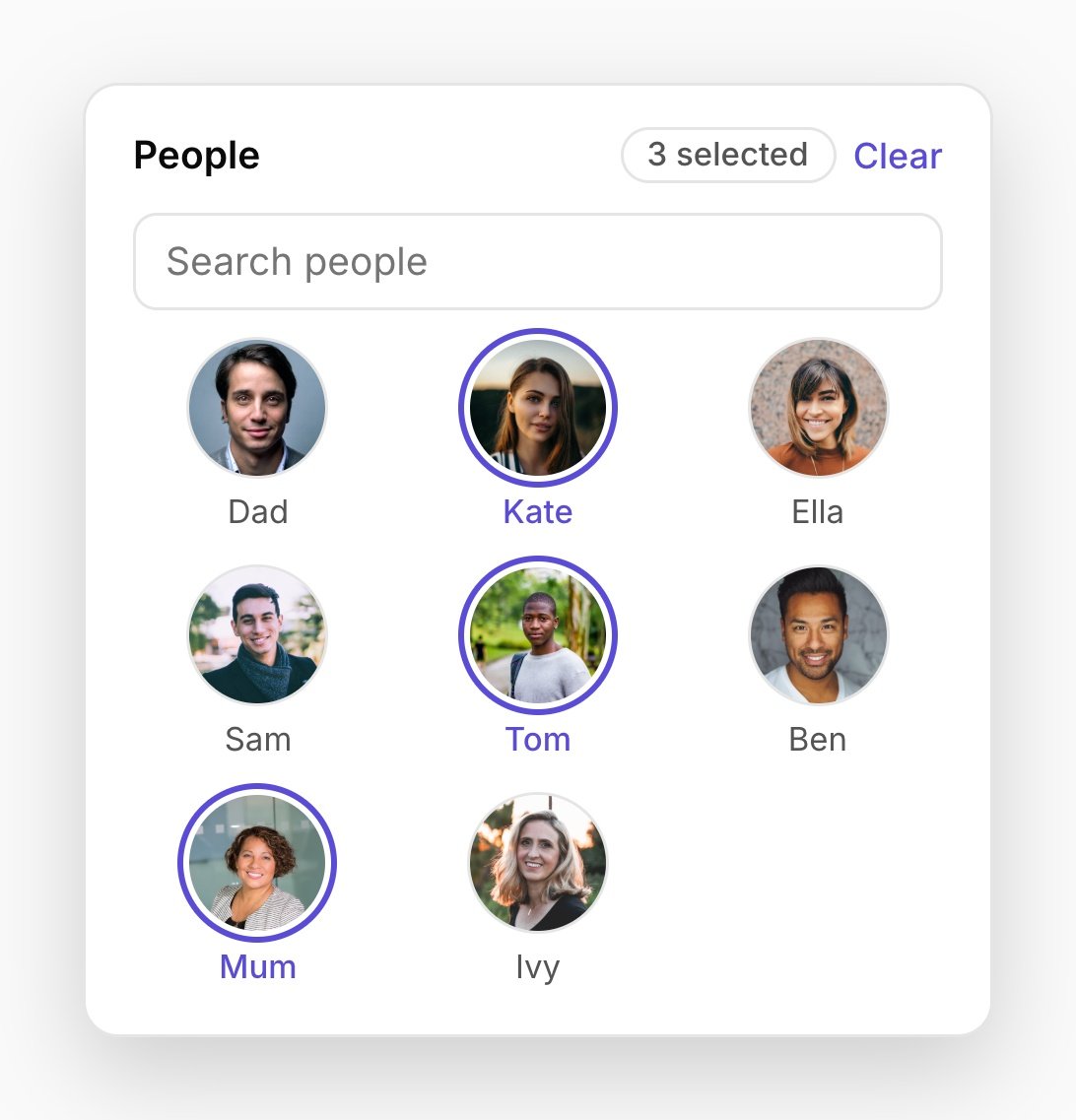
Illustrative People filter with named face portraits and three people selected

People filter example: choose named people to find photos containing them.

New faces may be assigned to an existing person or remain unassigned until there is enough evidence to group them. Background faces, small faces, and unclear matches may be left out. Similar-looking relatives, unusual angles, and obscured faces can still produce mistakes.

Correct the results

Open a photo’s information panel and use the People section to edit its faces. You can name or reassign a face, remove an incorrect face box, or draw a box for someone automatic detection missed. You can also merge person groups that represent the same individual. Removing a face box does not delete the photo. A manually added face left unassigned will not be grouped automatically later; assign it yourself when you know who it is. Face boxes are attached to the original image. While an edited version is current, boxes and face editing are hidden, but the existing person associations remain. Restoring the original makes the face boxes available again. For API and assistant correction workflows, see People and Faces. Automatic face detection and clustering apply to images, not videos.