

Choose your library
In the web app, open the library switcher to select a library. Choose Manage libraries to create or rename libraries you own. Browsing, searching, and uploads use the selected library, so check it before adding photos. People are grouped within each library, rather than across all your collections.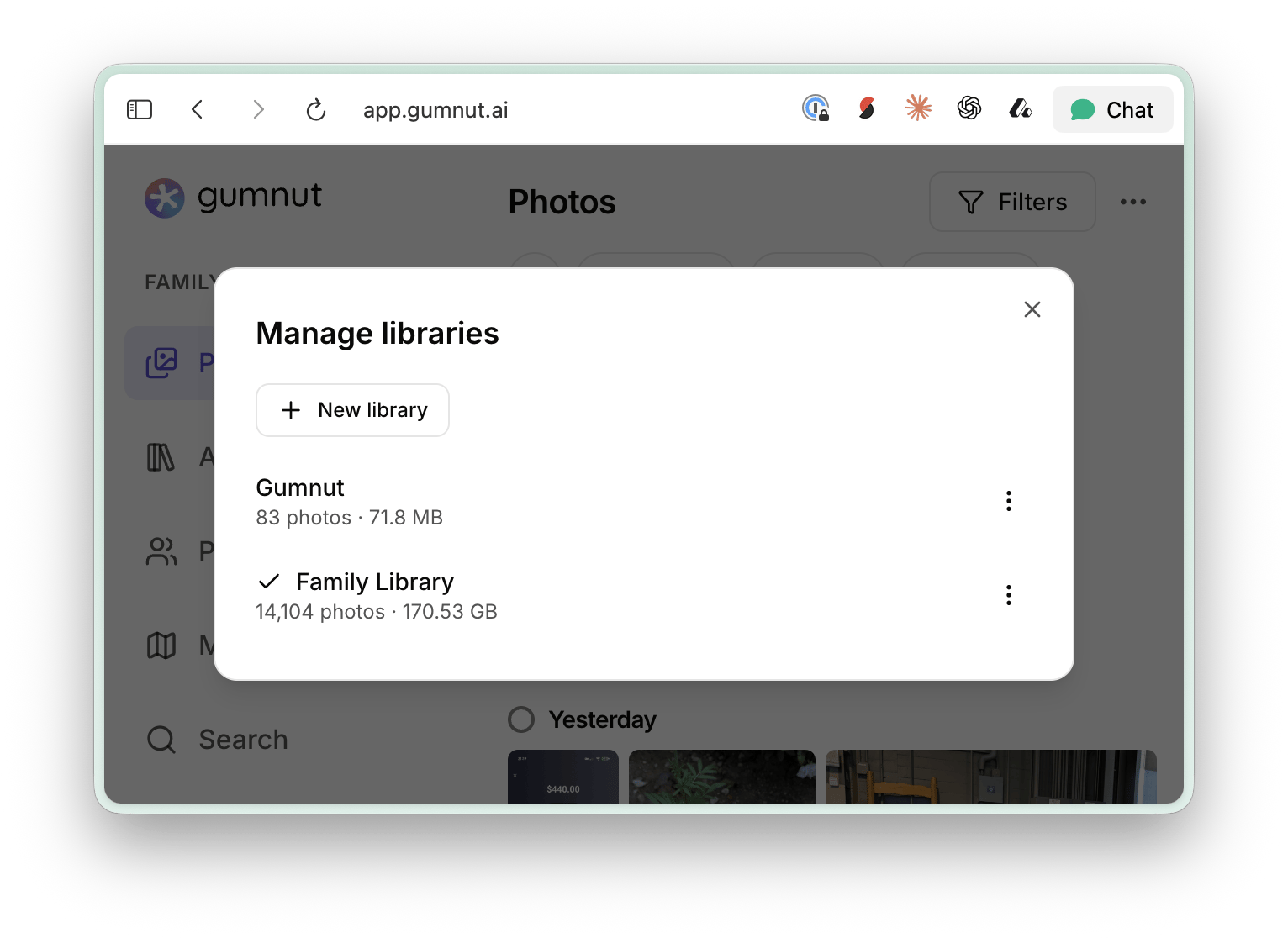
Manage separate collections and choose the library you are working in.
Share a collection
If you own the library, open Manage libraries and choose Share. Create an invitation for a Viewer or Collaborator, then share its link or QR code. You can set an expiration and a limit on how many people can join. Recipients sign in to Gumnut to accept the invitation.
Sharing gives members access to the whole library, not just one album.
As the owner, you can change a member’s role or remove their access.
Uploads to a shared library count toward the owner’s storage allowance.
Sharing access itself does not create more copies or multiply storage use.